Free YouTube Video Clipper
Paste a YouTube link, set exact start and end timestamps, and sign in to export your MP4, WebM, or MP3 clip.
Paste a YouTube link above to start
- Paste link
- Pick timestamps & 9:16 / 16:9
- Export HD video or audio
Cut a 20-second YouTube clip
- Load a video
Paste a link to an individual YouTube video or Short and select Load video. Standard YouTube and youtu.be links work.
- Set the clip range
Enter 0:42 in Start and 1:02 in End. The editor shows 0:20 selected.
- Export and download
Choose MP4 if available. Select Sign in to export if you are signed out, then select Create clip. Download the finished file from the Clips tab.
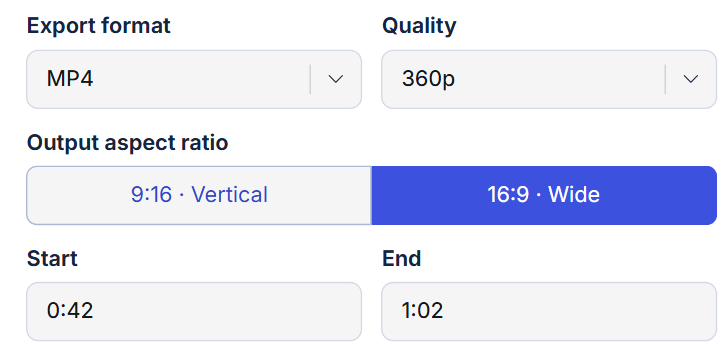

Example footage by 遇见于北北. Watch the source video on YouTube.
Export options and limits
| Setting | Options |
|---|---|
| Selection length | 1–120 seconds for free daily exports; longer continuous selections within the verified source duration with paid credits. The finished video can run longer than the selected range. |
| Formats | Sign in to export available MP4 or WebM video, or MP3, M4A, OGG, or Opus audio. Audio requires a source with an exportable track. |
| Video quality | 360p, 720p, or 1080p for free exports, plus 2K (1440p) and 4K (2160p) with credits where available for the source. |
| Daily export limit | Three new standard clips per free account across video and audio, resetting daily at 16:00 UTC. Use credits for extra exports. |
| Video framing | Choose 9:16 vertical or 16:9 wide. Fit keeps the whole picture and adds padding where needed. |
| Download window | 24 hours from the time the export is ready. |
Share, trim, or export a clip
Share a timestamp. Send a YouTube link that starts playback at the moment you want someone to see.
Trim your own upload. Use YouTube Studio to edit a video already on your channel.
Save a separate file. Use VideoClipper to export the time range you selected. The MP4 guide explains when to use each workflow.
Share the finished file. Use Copy result link in Clips. Anyone with an active link can open the clip. Delete the clip from your clip library to close access and schedule file deletion.
YouTube clipping FAQ
Can I use a YouTube Short?
Yes. Use the link to the individual Short. For a channel or playlist, open the video you want to clip first.
Can I save only the sound from my selected range?
Sign in and choose MP3 if the source has an exportable audio track and the format is available. See the MP3 guide if the source audio cannot be exported.
Can I fit a wide video into a vertical clip?
Choose 9:16 to keep the full picture with padding above and below. The 9:16 guide shows what that looks like.
Where can I get help with an export?
See VideoClipper support for link, format and download issues.
Clipping guides
- Cut a YouTube video by timestamp and export MP4
- Export part of a YouTube video as MP3
- Fit a landscape YouTube clip into 9:16
- Clip YouTube Shorts and make 9:16 vertical clips
- Export 2K and 4K YouTube clips with credits
- Cut long YouTube video clips over 2 minutes
- How to Make GTA 6 Clips for TikTok & Shorts (9:16)