Cut a YouTube video by timestamp and export MP4
Enter exact start and end times to cut a YouTube video into an MP4. Use a video you own or have permission to clip.
Published · Updated · By VideoClipper
When to use YouTube Studio vs. VideoClipper
Before downloading a segment, pick the right workflow for your goal—modifying an upload already on your channel works differently from exporting a standalone clip file:
| Tool | Use it when you want to |
|---|---|
| YouTube Studio | Trim an eligible video already on your channel. Studio saves the edit to that upload with its existing URL, views, and comments. YouTube’s trim instructions. |
| VideoClipper | Download a standalone, watermark-free MP4, WebM, or MP3 excerpt from a specific timestamp range—ready for social re-posting, slide decks, or local editing in 16:9 or 9:16. |
Cut and export the selected timestamp range
- Open the YouTube Video Clipper (or replace
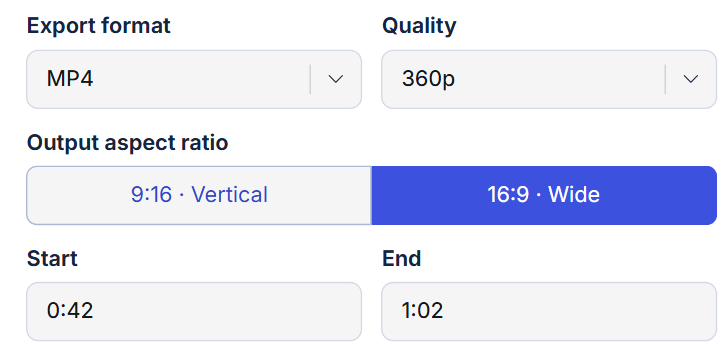
youtube.comwithvideoclipper.coin any YouTube URL in your browser bar), paste a YouTube watch, Shorts, oryoutu.belink, and select Load video. - In Controls, enter 0:42 in Start and 1:02 in End to select 20 seconds. Scrub the preview player, drag the timeline handles, or tap
−1s/+1sto lock in the exact frame window. - Choose MP4 under Export format. Pick a Quality (up to 1080p free daily; 2K/4K with one-time credits) and choose 16:9 · Wide or 9:16 · Vertical under Output aspect ratio.
- Sign in and select Create clip. Open Clips and select Download when the file is ready (or copy a revocable 24-hour share link).
Supported timestamp formats & URL preloading
You do not need to convert hours into raw seconds by hand. VideoClipper understands standard clock inputs and YouTube URL timestamp parameters:
| Format | Example input | How it behaves |
|---|---|---|
Minutes & seconds (m:ss) | 0:42 to 1:02 | Ideal for standard videos under one hour |
Hours, minutes & seconds (h:mm:ss) | 1:14:22 to 1:15:04 | Best for multi-hour podcasts, webinars, and livestream replays |
URL timestamp parameter (?t= / &t=) | videoclipper.co/watch?v=ID&t=90 | Automatically loads the video and positions the editor at 1:30 |
Example MP4 export

Example footage by 遇见于北北. Watch the source video on YouTube.
Check your MP4, keyframe rounding, and limits
You can select 1–120 seconds per clip for free daily exports (up to three new standard clips per day across video up to 1080p and audio, resetting daily at 16:00 UTC). Need longer continuous ranges or higher resolution? See our long clip guide or 4K export guide.
Because H.264/VP9 video streams store full image frames on periodic keyframes, the finished video can occasionally run a fraction of a second longer than the exact clock difference between Start and End. Download the file within 24 hours of completion and play back the opening and closing second before sharing it. If a download link expires after 24 hours, simply reload the source URL and export the same timestamps again.
Want to remove an intro or outro from a long upload instead? Visit our dedicated YouTube Video Trimmer workspace.
Timestamp MP4 clipping FAQ
Why does my YouTube link fail to load when I paste a playlist or channel URL?
VideoClipper cuts one individual video at a time. Open the specific video from the playlist or channel, copy its direct watch?v=, youtu.be/, or shorts/ URL, and paste that into the editor.
Can I preview my Start and End timestamps before creating an account?
Yes. Guests can load any supported link, scrub the timeline, and adjust Start/End timestamps freely. Signing in is only required when you submit the export so your finished clips can be saved privately in Clips for 24 hours.
How do I make sure my MP4 clip plays cleanly on iPhone, Mac, and Windows?
Select MP4 (not WebM) under Export format. VideoClipper renders standard H.264/AAC MP4 files that open natively across iOS Photos, QuickTime, Windows Media Player, CapCut, and Premiere Pro.
What is the quickest way to jump from YouTube straight to a timestamp in VideoClipper?
Pause YouTube at the moment you want, click Share → check "Start at", or simply change youtube.com to videoclipper.co in the address bar. VideoClipper loads the video and preserves your t= marker automatically.