Export part of a YouTube video as MP3
Export a selected part of a YouTube video's audio as MP3. The source needs an audio track available to VideoClipper.
Published · Updated · By VideoClipper
Select and export an audio segment
When you only need a spoken quote, sound effect, interview answer, or music cue, extracting audio directly by timestamp skips downloading gigabytes of video and avoids running a separate converter afterward:
- Open the YouTube Video Clipper, paste a link to a permitted YouTube video (or Twitch/Kick clip), and select Load video.
- In Controls, enter 0:42 as Start and 1:02 as End for a 20-second excerpt. For your own clip, select 1–120 seconds on the free daily tier, or longer continuous ranges using pay-as-you-go credits.
- Play the source preview from Start and listen closely around End. Use the
−1sand+1snudges so you never clip the first syllable of a word or cut off a sentence tail. - Choose MP3 (or M4A, OGG, or Opus) under Audio in the Export format menu. VideoClipper automatically hides the video resolution and aspect ratio controls in audio mode.
- Sign in and select Create clip. When the audio export finishes, download it from Clips within 24 hours.
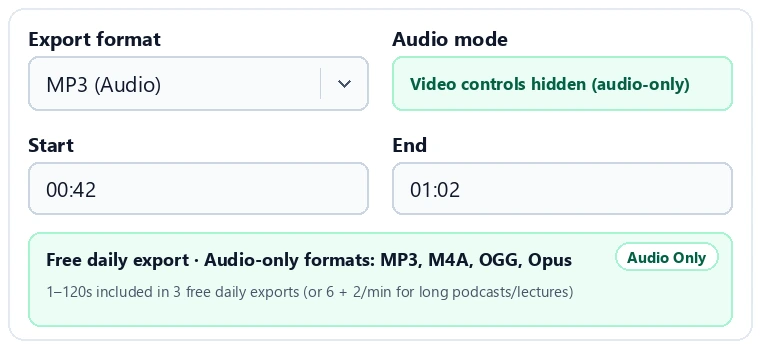
Example MP3 export

Example footage by 遇见于北北. Watch the source video on YouTube.
MP3 vs. M4A vs. OGG vs. Opus: which audio format to pick
VideoClipper supports four standalone audio containers—all sharing the same free daily allowance and low paid rate (6 base + 2 credits/minute for excerpts over 2 minutes):
| Format | Compatibility | Best use case |
|---|---|---|
| MP3 (Default) | Universal—works in every browser, phone, car stereo, DAW, and video editor | Podcast snippets, reaction sound bites, classroom handouts, and everyday sharing |
| M4A (AAC) | Native on iPhone, iPad, Mac, iMovie, GarageBand, and Final Cut Pro | Apple-ecosystem editing and crisp speech clarity at slightly smaller file sizes than MP3 |
| Opus | Modern browsers, Android, Discord, OBS, and DaVinci Resolve | Highest speech and music efficiency per megabyte for long podcast or lecture archives |
| OGG (Vorbis) | Open-source players, Godot/Unity game engines, Linux, and web audio | Royalty-free open container for indie dev prototypes and web sound effects |
How to verify cut boundaries & fix clipped words
Play the downloaded MP3 from 0:00 and listen carefully to the opening half-second and final fade. If a consonant or beat feels abrupt, add a 1-second buffer before Start or after End in Controls, export again, and apply a quick 100ms fade-in/out in Audacity, CapCut, or Premiere.
Remember that free accounts share up to 3 new clips per day across both video and audio (resetting daily at 16:00 UTC), and finished files stay downloadable in Clips for 24 hours. Exporting an excerpt longer than 2 minutes? See our long clip guide.
Troubleshooting: if MP3 or the audio track is unavailable
- Check alternative audio formats: Open Export format under Audio; if MP3 is temporarily disabled for a specific source while M4A or Opus is enabled, export that format instead.
- Source has no exportable audio stream: Some mute animations, live premieres still processing, or restricted uploads do not expose a standalone audio track for extraction even when sound plays inside YouTube’s player.
- Use individual video URLs only: Channel links, Mix playlists, and search pages cannot be parsed—open the single video first and copy its direct link.
YouTube MP3 clip extraction FAQ
Can I extract just 15 seconds of MP3 audio from a 2-hour YouTube podcast?
Yes. Paste the podcast URL, type exact hh:mm:ss Start and End timestamps (e.g., 1:12:05 to 1:12:20), choose MP3, and VideoClipper exports only that 15-second audio slice.
Does MP3 extraction count toward the 3 free daily clips?
Yes. Free signed-in accounts receive 3 shared standard exports (1–120 seconds) per day across video and audio. Longer audio excerpts or extra daily exports use one-time credits (6 base + 2 credits/minute).
Can I also extract MP3 audio from YouTube Shorts, Twitch clips, or Kick clips?
Yes. Any supported source with an available audio track can be exported directly to MP3, M4A, OGG, or Opus in the same editor.
Why is my audio export much faster than an MP4 video export?
Audio-only exports skip video frame decoding, scaling, and H.264/VP9 re-encoding, resulting in dramatically smaller files and faster turnaround—especially for 10–30 minute lecture or podcast excerpts.